Key takeaways
- Postmarkr prints on US Letter paper. Set Letter before you export a typed letter, sign paper in ink before you scan it, and tap Fit and preview if the upload offers it for a scan or A4 file.
- On iPhone, scan with Preview, or save a Notes scan from the scan's own Menu. A whole note exported as a PDF keeps only the first page of a multi-page scan.
- Up to 10 different letters can go in one checkout, each with its own addresses.
- Postmarkr's dashboard is a processing record. When a notice must be sent with USPS proof, use Certified Mail or a Certificate of Mailing at the Post Office.
A signed notice, an invoice or a form needs to be mailed, and you're on a job site, on the road or nowhere near a printer. You can send it from the phone in your hand.
Here's how to send a letter from your phone: get the document into one PDF, sign it if it needs a signature, then upload it to Postmarkr in your phone's browser and enter the addresses. We print it, put it in an envelope with First-Class postage and mail it. There's no app to install.
A one-page black-and-white letter is $2.05 all-in and enters the mailstream by the next business day. The snag phone users hit most is page size: Postmarkr prints on US Letter paper (8.5 × 11 inches), and PDFs made on a phone, especially A4 documents and photos, often come out a different size. The steps below show how to avoid it.
What you need#
- The document: a paper page, a PDF, or a letter typed in Word, Pages or Google Docs
- The recipient's full U.S. mailing address. For a business notice, use the address named in the contract or lease's notice clause; it may not be the address the company works from.
- Your return address
- A Postmarkr account (email or Google sign-in) and a payment card
What are you starting with?#
Choose the document you have to see how to get it ready on your phone. After that, the rest of the guide is the same for everyone.
A PDF you already have#
On iPhone: in Mail, touch and hold the attachment, tap Save to Files, and choose a folder you'll find again.
On Android: open the attachment in your email app and download it. Downloaded files go to the Downloads folder in your Files app (My Files on a Samsung Galaxy).
Open the saved copy and check it's the version you mean to send. A PDF from outside the U.S. may be A4 size. If it also needs filling in or signing, ask the sender for a US Letter copy first: Postmarkr can fit an A4 page to Letter, but not one with fill-in fields or a signature added on top.
A paper document#
Lay the page on a flat, dark surface in even light so your phone can find its edges, and watch for glare. Scan every page in the same session so you end up with one PDF. If the page needs your signature, sign it in ink before you scan, and you can skip the phone signing steps below.
On iPhone (iOS 26 or later): open Preview and tap Scan Documents. Your iPhone captures the page automatically; to press the shutter yourself, tap Auto to switch to manual. Scan the remaining pages, tap a thumbnail to crop or rotate, then tap Done. Preview saves all the pages as one PDF.
In Notes: in a note, tap the Attachments button, then Scan Documents, and tap Done after the last page (Save on iOS 18 and earlier). To get the PDF out, tap the Menu button on the scan itself, choose Share, then Save to Files. Don't use the note's own Share button: Apple says a note exported as a PDF keeps only the first page of a multi-page scan.
On Android: in Google Drive, tap Camera at the bottom right, capture the page, and use Add for each extra page. Tap Done, name the file, choose .pdf and tap Save. Files by Google also has a Scan button.
On a Samsung Galaxy with One UI 8.5 or later, the Camera app's Scan button can save every page as one PDF (Save as PDF). On older models the scan goes to Gallery; turn it into a PDF in Samsung Notes with More options > Save as file > PDF file.
Built-in phone scanners don't let you choose a page size, so a scan may not come out at exactly 8.5 × 11 inches. If Postmarkr flags the size when you upload, the upload step below shows the fix.
A letter you typed#
Set the paper size to Letter, then export a PDF.
Pages (iPhone): tap More > Document Options > Document Setup, choose Letter, and tap Done. Then tap More > Export > PDF.
Google Docs (iPhone or Android): tap More > Page setup > Paper size and choose Letter. On Android, tap Edit first; if the option is missing, turn off Pageless. Then export a PDF from More > Share & export.
Word: on iPhone, tap the three dots, then Export > PDF. On Android, tap File > Print > Save as PDF. If the document was set up for A4 paper, Postmarkr will flag it when you upload.
Reopen the PDF and check that the last line or your signature hasn't moved onto a page of its own.
A photo or screenshot#
A photo saved as a PDF keeps the photo's own page size, which is often much larger than a letter page or sideways, so Postmarkr usually can't fit it to Letter paper for you.
If you still have the paper, scan it instead. If all you have is the image, put it on a Letter page: in Pages or Google Docs, set the paper size to Letter, insert the photo, and export a PDF.
Fill in and sign it on your phone#
Skip this section if nothing needs filling in or signing, or if you signed the paper before scanning it.
On iPhone: open the PDF in Preview and tap Form Filling to type into the fields. To sign, tap Add, add your signature with your finger, and drag it into place. In Files or Mail, Markup > Add > Add Signature does the same job.
On Android: Google Drive can fill in a fillable PDF (Edit > Form Filling) but has no signature tool. The Adobe Acrobat Reader app can do both: open the PDF, tap Fill & Sign, then Signature > Add signature. Acrobat locks the signature into the page when you save, so it can't be moved or edited afterward.
A signature added on your phone prints as part of the page. If the recipient asks for an original ink signature, a printed copy can't provide one; mail the signed paper instead. Signing for your boss rather than yourself? Read how to sign a letter on behalf of your boss.
Check the PDF before you upload#
A file can open on your phone and still print badly. Take a minute to check:
- Every page is there. Count them against the paper or the original file.
- Nothing is cut off. Look closely at signatures, dates, checkboxes and text near the edges.
- The pages are upright and in order. Rotate or reorder before you upload.
- The text is sharp. If small print looks blurry on your screen, scan it again in steadier light.
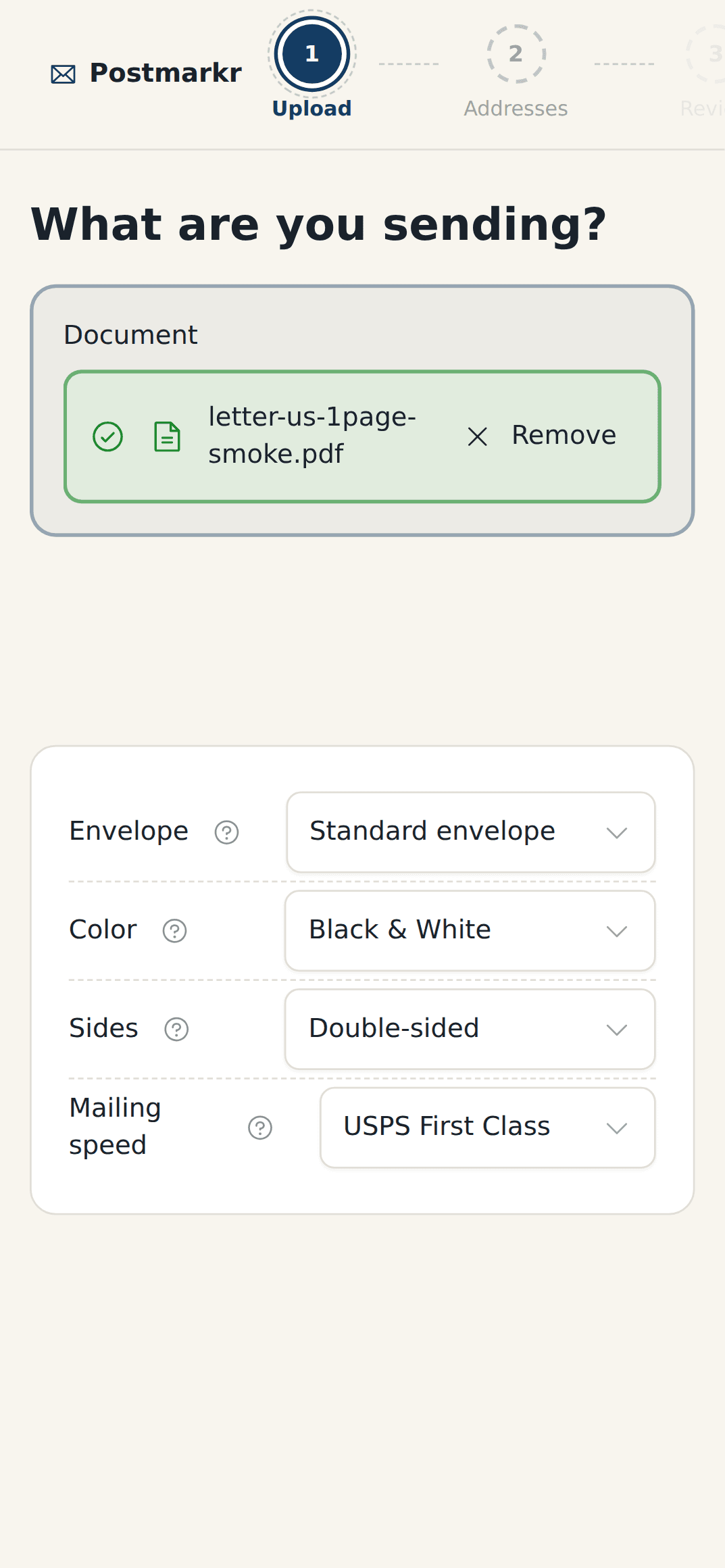
- It's one PDF, no more than 5 MB and 50 pages. Postmarkr accepts PDFs only. A long color scan can go over 5 MB; scanning in black and white usually makes a smaller file.
- The filename is clear. Signed_Lease_Notice_Oct_2026.pdf is easier to pick out of a file list than Scan_0042.pdf.
Upload, address and pay#
The rest happens in your phone's browser.
- Open Postmarkr's online letter sender and tap Upload a PDF. New customers create an account with an email address or sign in with Google.
- Choose your PDF from Files, Downloads or Google Drive and wait for the upload to finish.
- If Postmarkr says the file isn't US Letter, tap Fit and preview if it's offered and check the result. Fitting places each page on a Letter sheet and shrinks it if it's too big, so look closely at small print and signatures.
- If Fit and preview isn't offered, remake the file at Letter size. For a typed letter, export it again with Letter paper. For a paper document, take a photo of each page, then in Pages or Google Docs set the paper size to Letter, insert the photos and export a PDF. For a PDF someone sent you, ask the sender for a US Letter copy.
- Choose black and white or color, and single- or double-sided printing.
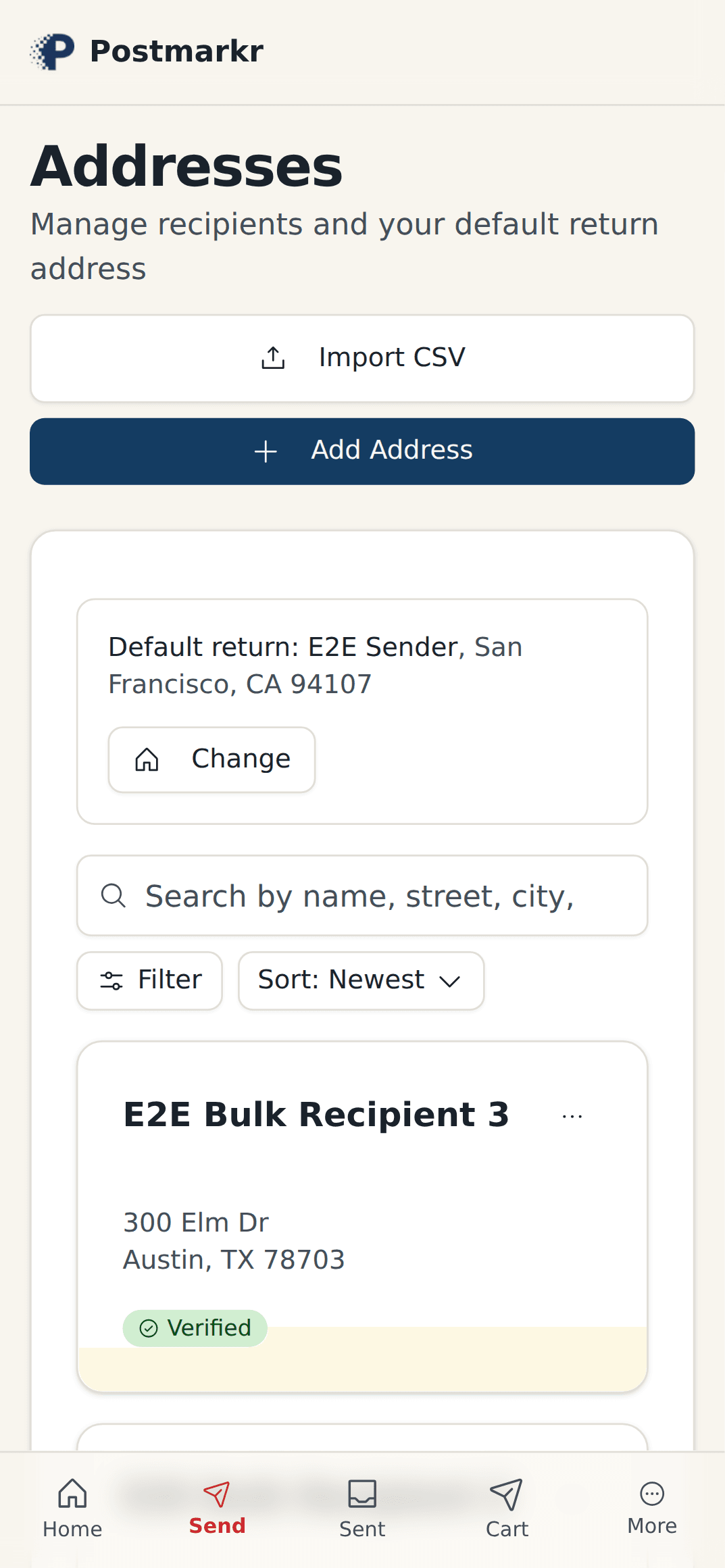
- Enter the recipient's address and your return address. Postmarkr checks both with USPS before you can continue, so fix any address marked undeliverable.
- Open the preview. Postmarkr adds an address page in front of your document, and the addresses show through the envelope's windows. Check that every page of your document follows it.
- Check the total and pay by card. A payment receipt arrives by email.
The USPS check confirms the address can receive mail, not that it's where your document should go. A form often shows your own address but has to go to the office that processes it, so enter the address you were given for sending it.
Documents are encrypted in transit and at rest. They're processed automatically, and we never read or review the content of your mail.
What it costs and when it arrives#
A one-page black-and-white letter is $2.05. That covers printing, the address page, a standard envelope, First-Class postage and the processing fee. A two-page black-and-white letter is $2.26, and a one-page color letter is $2.52. Seven or more sheets, counting the address page, go in a larger envelope, which adds to the price; the total is always shown before you pay. There's no subscription or minimum; see pricing.
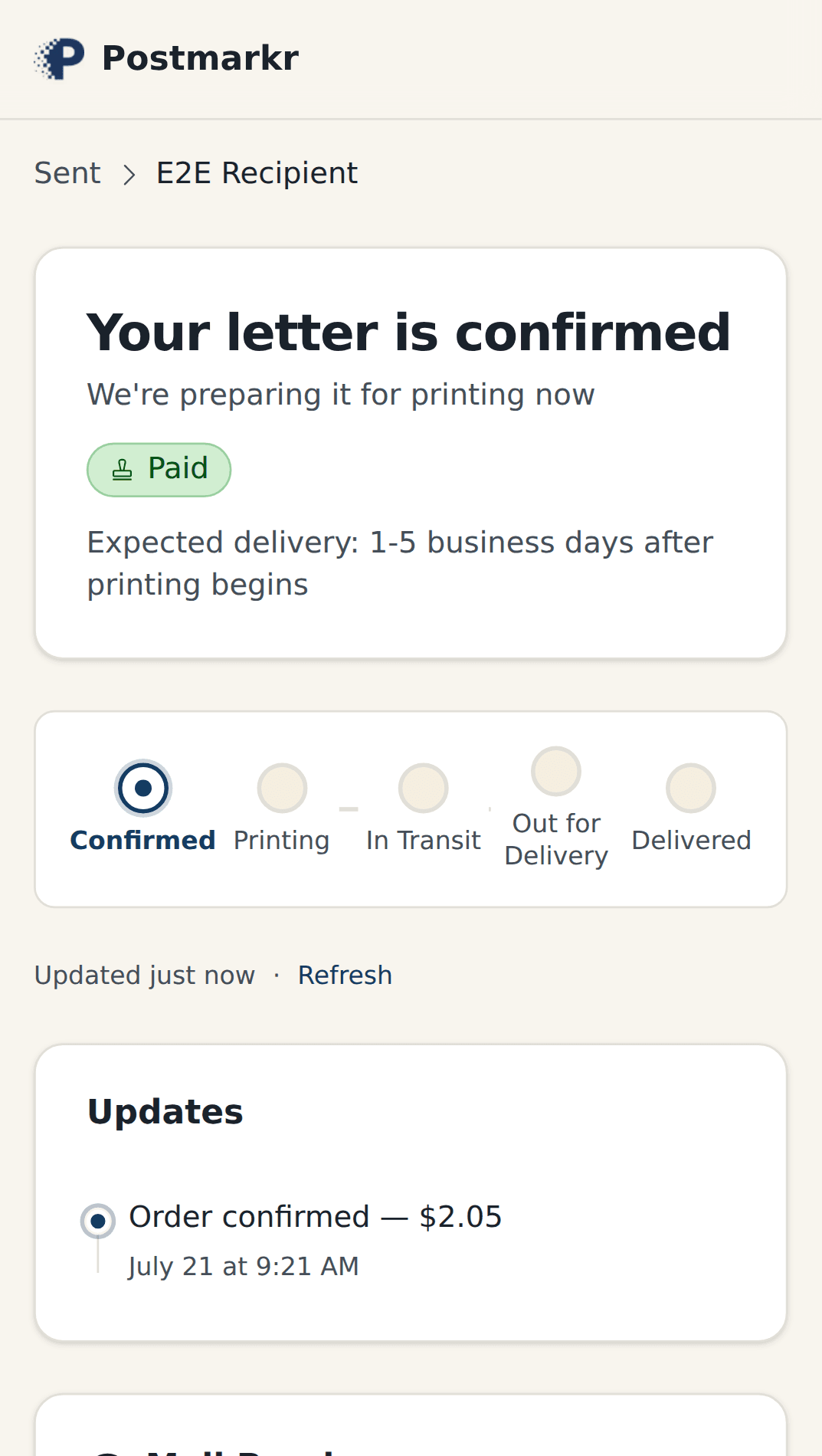
After you pay, your letter is printed the next business day and enters the mailstream by the next business day. USPS estimates 1–5 days for First-Class Mail after that. The four-way timing comparison shows how that compares with mailing it yourself.
Your dashboard shows the letter moving from Confirmed to Printing, In Transit, Out for Delivery and Delivered. The printing and mailing steps are estimates based on when your letter went to print; USPS scan updates appear when available.
Postmarkr mails to U.S. addresses only. If USPS confirms a letter was lost, we'll resend it for free. Mail returned as undeliverable because of an incorrect or incomplete address is not eligible for a refund or free resend. See how the print-and-mail process works for the full timeline.
Sending more than one letter#
Upload each PDF as its own letter and pay for up to 10 together in one checkout. Each letter has its own addresses and its own price. For one letter going to a list of people, Bulk Send mails the same document to up to 100 recipients per batch. How to send multiple letters at once to different addresses explains which one you need. If you're sending for an executive, our page for executive assistants shows how to keep a record of each letter for your executive.
When the letter needs proof of mailing#
Your Postmarkr dashboard is a processing record: what you sent, to whom, and how it moved through printing and mailing. It isn't a USPS receipt. Some leases, contracts and statutes say how a notice must be sent, so read the notice clause before you choose.
If it calls for Certified Mail, USPS charges $5.55 plus postage and gives you a mailing receipt and tracking; our Certified Mail guide explains what it proves. If you only need proof that you mailed it, a Certificate of Mailing (PS Form 3817) costs $2.45 plus postage for one letter and is bought at the Post Office counter when you hand the letter over.
Postmarkr sends First-Class letters only and doesn't send Certified Mail. When the notice clause calls for Certified Mail or a Certificate of Mailing, mail that letter at a Post Office counter; our guide to Certified Mail alternatives shows what each USPS option records.
When to use paper instead#
Mail the paper itself when the recipient needs an original: a wet-ink signature, a notarized document, or an enclosure such as a check. Check the recipient's instructions for signatures, notarization and mailing method before you send anything time-sensitive. For a signed contract, how to mail a signed contract covers whether to send a copy or the original, and who mails it.
If you already have paper, an envelope and a $0.82 stamp, a short handwritten note costs less than $2.05. If the letter must be postmarked today, print it at a library or print shop, then take it to a Post Office counter and ask for a hand postmark; our guide to mailing without a printer lists places to print. And if the recipient accepts email or an online upload, that's faster than any mailed letter.
For everything else, such as a typed letter, an invoice, or a signed form the recipient accepts as a copy, your phone is enough: make the PDF, check it, upload it, and confirm the addresses.